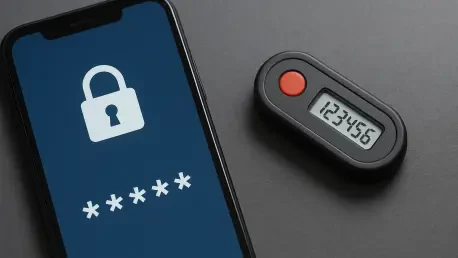

Players often encounter errors during gifting because they have not met the requirement of being at least level two or having 2FA active for more than two days. In the current digital landscape of 2026, maintaining account security has transitioned from a recommended practice to an absolute necessity for anyone participating in the global gaming ecosystem. For Fortnite enthusiasts, the stakes are particularly high, given the years of accumulated seasonal rewards, rare collaborative cosmetics, and competitive rankings that represent significant time and sometimes financial investment. Beyond the mere protection of virtual assets, Epic Games has integrated two-factor authentication into the very fabric of the game’s social and competitive mechanics. This means that without a verified second layer of security, users find themselves locked out of essential experiences like sending virtual gifts to friends or competing for high-stakes prizes in regional tournaments. The transition to more robust security protocols reflects a broader industry trend where developers prioritize the integrity of the player experience against an increasing volume of automated credential attacks. By implementing these measures, players not only safeguard their progress but also contribute to a more stable and trustworthy environment for the entire community. Navigating these requirements can initially seem complex, but understanding the underlying mechanisms of modern authentication protocols ensures a smoother journey through the diverse platforms where the game is currently available. Taking the time to configure these settings now prevents the frustration of missed opportunities during limited-time events and provides peace of mind while exploring the vast, interconnected world of the Epic Games Store.
1. General Fortnite 2FA Activation: The Essential Foundation
The core philosophy behind the current security landscape in 2026 revolves around the principle of multi-layered defense. Epic Games has meticulously designed its account infrastructure to ensure that a single compromised password does not lead to the total loss of a user’s digital history. By requiring two-factor authentication for high-value interactions, such as the distribution of gifts or participation in the Fortnite Champion Series, the developers have created a system where identity verification is synonymous with participation. This requirement acts as a deterrent against fraudulent activities, ensuring that the marketplace remains fair and that social interactions are genuine. Furthermore, the inclusion of rewards like the Boogie Down emote serves as a positive reinforcement, encouraging even the most casual players to take the necessary steps to lock down their profiles. This holistic approach ensures that the community remains vibrant and secure, allowing players to focus on improving their skills and enjoying new seasonal content without the constant shadow of potential account theft. As the ecosystem continues to expand across more devices and services, the centralization of security settings through the Epic Games portal remains the most efficient way to manage personal data and virtual property effectively across diverse gaming hardware.
To begin the process of general activation, a user must first engage with the official web portal to manage their credentials and security preferences. The following sequence provides the most direct path to securing a profile across all platforms. 1. Access your profile: Log in at epicgames.com using the credentials you use for Fortnite, ensuring that you are using a secure and private internet connection. 2. Navigate to settings: Go to your Account dashboard and pick “Password & Security,” which is typically located in the side navigation menu of the account management interface. 3. Locate the 2FA areMove down the page to the Two-Factor Authentication block where all available methods are listed in a clear, organized fashion. 4. Choose a technique: Click “Set Up” beside the specific verification method you prefer, keeping in mind that you can enable multiple methods for added redundancy should one primary device become unavailable. 5. Validate the link: Input the security string you receive to finalize the connection, which confirms that your chosen device or email is correctly synced with your account. Completing these steps ensures that the system recognizes the account as verified, immediately unlocking restricted features such as the ability to send cosmetics to others or register for upcoming competitive events.
2. Activating an Authenticator App: Maximum Security Protocols
In the year 2026, the use of a standalone authenticator application is widely regarded as the gold standard for personal account security. Unlike traditional methods that may rely on cellular networks, an authenticator app generates a rotating code every 30 seconds on your smartphone, providing a time-based one-time password that is virtually impossible to intercept remotely. This method is highly resilient against common threats such as SIM swapping or unauthorized email access, as it requires physical possession of the mobile device to generate the necessary credentials for a login attempt. Most modern smartphones come equipped with built-in biometric security that further protects these apps, adding a third layer of verification to the process. For players who are serious about protecting their digital inventory, especially those who have participated in high-stakes matches from 2026 to the present, utilizing this technology is the most proactive step available. It provides a seamless balance between rigorous security and user convenience, ensuring that legitimate access is granted instantly while malicious actors are kept at a significant disadvantage during any attempted breach of the account’s perimeter.
Establishing a link between your gaming profile and a dedicated security app requires a specific set of technical actions to ensure a synchronized connection. 1. Download a tool: Install a program like Google Authenticator or Microsoft Authenticator from your app store, making sure to choose a reputable developer. 2. Initiate setup: Click “Set Up” next to the authenticator app choice on the Epic security page to trigger the generation of a unique pairing key. 3. Link the account: Open your mobile app and add a new entry, which will prepare the device to receive the new security credentials. 4. Capture the image: Use your phone to scan the QR code displayed on the website, which automatically configures the application with your account details. 5. Sync the code: Enter the digits shown in the app into the website’s verification field to confirm that the synchronization was successful and that the codes are currently valid. 6. Retain recovery keys: Save the provided emergency backup codes in a secure location, such as a physical safe or a dedicated password manager, to ensure access if the mobile device is ever lost or damaged. This final step is critical because without these recovery keys, regaining access to an account protected by an authenticator app can become a lengthy and difficult administrative process.
3. Activating Email Verification: A Reliable Secondary Layer
For many players, email verification remains a highly accessible and familiar method of securing their digital presence. This approach is particularly useful for those who may not always have access to a dedicated smartphone or who prefer to manage their security settings through a desktop environment. In 2026, email services have reached new heights of security, often featuring their own internal 2FA systems, which effectively doubles the protection for your Epic Games account. When this method is active, the system sends a unique login code directly to your registered email address whenever a new sign-in attempt is detected from an unrecognized device or browser. This ensures that even if a password is leaked, the intruder would still need full access to the associated email inbox to bypass the final security hurdle. Furthermore, email verification serves as an excellent fallback method when used in conjunction with other security tools, providing a versatile safety net for travelers or those who frequently switch between different gaming setups in various geographic locations throughout the current year.
Implementing this specific security measure involves a straightforward process centered on the verification of your contact information within the Epic Games database. 1. Check your profile: Visit your Account page to ensure that all current information is accurate and that the registered address is one you monitor frequently. 2. Confirm your identity: If your email isn’t verified, click the “resend link” notification and follow the instructions in the email Epic sends you, which usually involves clicking a unique confirmation button. 3. Toggle the setting: Go back to “Password & Security” and click “Set Up” for the email option to activate this specific form of two-factor authentication for all future login attempts. 4. Finalize the link: Retrieve the code from your inbox and type it into the prompt on the website to verify that the communication channel is open and functioning correctly. Once these actions are completed, every subsequent login on a new machine will trigger an automated message containing a unique string of characters, providing a clear and immediate alert if someone else attempts to access the profile. This layer of transparency is invaluable for maintaining awareness of the account’s security status at all times.
4. Activating SMS Verification: Simple Mobile Alerts
SMS verification provides a direct and uncomplicated way to secure an account by utilizing the cellular network to deliver security codes. While some experts in 2026 suggest that app-based verification is superior, the simplicity of receiving a text message remains a popular choice for millions of users who prioritize ease of use. This method is especially effective for players who do not wish to install additional software on their devices but still want the protection of a secondary verification step. However, it is important to note that SMS verification may be subject to regional availability and carrier limitations, which is why Epic Games occasionally restricts its use in certain geographic areas or for specific types of “Cabined Accounts.” These accounts, designed for younger players, often require parental consent and may have different security requirements to ensure a safe environment for minors. Despite these minor limitations, SMS remains a robust tool for the general player base, offering a quick and familiar way to authenticate identity during the login process without the need for a constant internet connection on the receiving device.
The process for enabling mobile text alerts is designed to be user-friendly and can be completed in just a few moments through the security dashboard. 1. Start the process: Click “Set Up” beside the SMS selection to begin the integration of your mobile phone number with the account’s security protocols. 2. Provide your number: Type in your mobile phone number and hit “Continue,” ensuring that you include the correct country code for your specific region. 3. Verify the message: Enter the code sent to your phone into the “Verification Code” box on the web page, which confirms that the number provided is active and capable of receiving international messages from Epic’s servers. 4. Complete the task: Click “Enable SMS Authentication” to finalize the setup and activate the feature for all future security prompts. After this is done, any time a high-risk action is performed on the account, such as changing a password or attempting a login from a new city, a text message will be dispatched immediately. This ensures that the player is always the gatekeeper of their digital assets, providing a physical tether between the virtual account and a real-world device that stays in the owner’s possession.
5. Activating the Epic Authenticator: One-Tap Efficiency
The Epic Authenticator represents the pinnacle of integrated security within the developer’s own ecosystem. By embedding the verification process directly into the official Epic Games mobile app, the company has created a “one-tap” approval system that removes the need to manually transcribe six-digit codes. In 2026, where speed and efficiency are highly valued by the gaming community, this method has become the preferred choice for those who are already using the mobile app to manage their library or track their progress. When a login attempt occurs, a push notification appears on the linked mobile device, allowing the user to simply tap a button to approve or deny the request. This not only speeds up the authentication process but also provides a more descriptive alert, often including the location and device type of the person attempting to sign in. This level of detail allows players to quickly identify and thwart unauthorized access attempts before they can proceed. The integration also ensures that the security feature receives regular updates alongside the main application, maintaining its effectiveness against the latest digital threats.
Setting up this streamlined verification method requires the installation of the official mobile platform on a compatible device. 1. Get the software: Install the Epic Games app on your mobile device from the authorized application store for your specific operating system. 2. Sign in: Launch the app and log into your Epic account using your standard credentials to establish the initial connection between the software and your profile. 3. Trigger the feature: Tap “Enable Epic Authenticator” or find it under the “Auth” tab, which is dedicated specifically to managing security tokens and login approvals. 4. Follow the guide: Go through the remaining on-screen prompts until the status reads “Enabled,” which may include a brief confirmation step involving your biometric data or a secondary security code. 5. Grant permissions: Turn on notifications so you can approve logins instantly, as the push notification system is the primary way the “one-tap” feature communicates with the user. Once these permissions are granted, the device becomes a powerful security key that simplifies the verification process across all platforms where the game is played, from high-end PCs to portable handheld consoles.
6. Setting Up 2FA for Console Players: PlayStation, Xbox, and Switch
A common challenge for players on PlayStation, Xbox, and Nintendo Switch involves the nature of accounts created directly through a console interface. Many users began their journey by simply launching the game on their preferred console without ever visiting the Epic Games website, resulting in what is often called a “ghost” or “nameless” account. To enable 2FA on these profiles, the player must first promote their console ID to a full Epic Games account, which bridges the gap between the console’s network and Epic’s own security infrastructure. This process does not reset progress or remove items; instead, it provides a centralized dashboard where the player can manage security for all linked platforms simultaneously. In 2026, this cross-platform integration is more vital than ever, as players frequently move between home consoles and mobile devices. Ensuring that a console account is properly linked and secured prevents the risk of losing access during network maintenance or if the console’s primary service experiences a disruption, as the Epic account remains the ultimate authority for game progress and item ownership.
The conversion and security setup for console-based users follows a specific path that begins with the identification of the existing platform account. 1. Clear your session: Sign out of epicgames.com on your web browser to ensure that no other active sessions interfere with the new linking process. 2. Choose your platform: On the login page, click the icon for your specific console, such as the PlayStation Network, Xbox Live, or Nintendo account logos, to initiate the handshake between the two services. 3. Log in: Enter the credentials you use for that console’s network, which verifies your ownership of the existing game progress. 4. Provide details: If prompted to “Finish Setting Up Your Account,” enter an email address and other required info to create a permanent Epic Games profile that is now tied to your console ID. 5. Enable security: Navigate to “Password & Security” and follow the general activation steps described in earlier sections of this guide. Once this bridge is established, the 2FA settings applied to the Epic Games account will automatically protect the game on the console, ensuring that any future login on the hardware requires the same secondary verification as any other platform, thereby unifying the security of the entire gaming experience.
7. Updating Your Phone Number: Maintaining Long-Term Access
Maintaining current contact information is a vital part of long-term account health, especially for those who rely on mobile-based security methods. Over time, it is common for individuals to change their mobile service providers or update their hardware, which can lead to a situation where the registered security number is no longer accessible. To avoid being locked out, it is essential to proactively update these details within the security dashboard whenever a change occurs. In 2026, this process is streamlined but requires the user to have at least one active form of authentication available to authorize the change. If a primary method is lost before an update can be made, the use of backup codes or email verification becomes the primary way to regain control. Regularly auditing these settings ensures that the account remains accessible even during major life transitions, such as moving to a new region or upgrading to a new mobile plan. This proactive maintenance is a hallmark of an informed player who understands that digital security is an ongoing process rather than a one-time configuration.
The procedure for swapping an old phone number with a new one involves a secure sequence of removal and re-addition within the account settings. 1. Visit security settings: Open the “Password & Security” section of your account on the official website, ensuring you are logged in securely. 2. Discard the old number: Click the three dots next to the SMS method and select “Remove Method,” which will prompt a confirmation to ensure you intended to delete the existing link. 3. Verify removal: Confirm your choice to delete the old link, which may require you to enter a final code from the old device if it is still available. 4. Add the new number: Click “Set Up,” input your current phone number, and hit “Continue” to start the verification of the new contact point. 5. Finalize: Enter the new text code and click “Enable SMS Authentication” to lock in the change and ensure that all future alerts are sent to the correct device. The implementation of these diverse security protocols represented a significant milestone in safeguarding the digital identities of millions of players worldwide. By choosing the most appropriate method—whether through sophisticated mobile applications, verified email channels, or direct SMS alerts—individuals ensured that their competitive progress and unique cosmetic collections remained under their exclusive control. This proactive approach to digital hygiene mitigated the risks associated with unauthorized access and paved the way for a more secure gaming experience across all supported devices during 2026 and beyond. Successful players recognized that a few moments spent in the security dashboard saved countless hours of potential troubleshooting and guaranteed their continued participation in the evolving world of Fortnite.