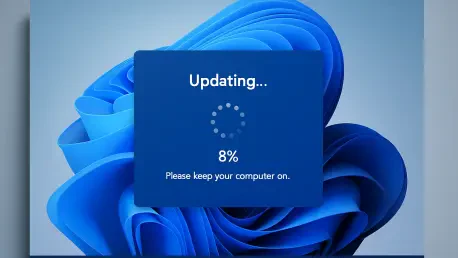

If the password icon on the Windows 11 lock screen vanished after recent updates you are not imagining it and you are not alone. A quiet but disruptive regression has made the icon invisible on 24## and 25## systems with multiple sign-in methods enabled, even though the hidden button still opens the password field. This roundup brings together viewpoints from accessibility advocates, enterprise IT leaders, and deployment pros to clarify what broke, why it matters, and how to navigate it until Microsoft ships a fix.
Why this roundup matters now
The lock screen is the first impression of system reliability, so any ambiguity at sign-in can ripple into trust issues, higher support volume, and accessibility barriers. Specialists tracking Windows release health note that this incident fits a broader pattern seen since August, when updates beginning with the KB5064081 preview triggered issues that later required targeted fixes across media playback, app installation, streaming, and patch distribution.
Moreover, the nuance here is not functionality but discoverability. The button still works, but affordance is gone; hover reveals a clickable void where the icon should be. That subtle difference is exactly where usability, security, and policy collide, because identity workflows depend on clarity under stress—kiosk resets, biometric failures, and shared devices rarely afford extra time for guesswork.
What multiple camps say about the missing icon
Usability and accessibility advocates
Design voices argue that hiding a control when multiple sign-in methods exist breaks the model users learn over time. They point to brittle UI state detection and say this is not a minor annoyance; it is a front-door regression that undermines secure-by-design expectations and raises the cognitive load, especially for users relying on assistive tech or visual cues.
Accessibility specialists further warn that an invisible target violates predictable interaction patterns. Even if a keyboard path exists, inconsistent visuals can create perceived lockouts and expose organizations to compliance risk when fallback paths are obscured.
Enterprise IT leaders
Operations leaders see a support story: mixed environments with Windows Hello, PIN, smart cards, and passwords generate spikes in tickets the moment users cannot see their fallback. Help desks report time-consuming calls that end with “click where it used to be,” which is not a satisfying resolution in regulated sectors or high-availability settings.
These leaders also connect the dots to recent WSUS delivery failures and emergency recovery patches. Their stance is pragmatic: preview labels and ringed deployments reduce but do not eliminate UX regressions, so pilots must explicitly test identity flows after each cumulative update.
Windows troubleshooters and deployment pros
Field engineers frame the bug as a visibility logic slip introduced after the August wave. They note that hover-to-reveal behavior implies the control still mounts, but the presentation layer misfires when multiple credentials coexist. In their view, this is a classic edge-case gap that better test matrices could catch.
At the same time, they push for temporary guardrails. Feature flags that restore known-good visuals and admin toggles for “safe sign-in UI” would let organizations keep security updates flowing without owning the fallout from a confusing lock screen.
Practical guidance that experts agree on
Short-term user moves
User education works fastest: advise hovering or clicking where the password icon normally appears, usually below sign-in options on the lock screen. Remind users of alternate paths—PIN, Windows Hello, or smart card—while confirming that password entry still functions even if the icon is missing.
For shared or kiosk devices, post a brief screen-side guide with a screenshot that marks the invisible hotspot. Plain language and minimal steps reduce friction when biometrics fail or time is tight.
Administrator playbook
Admins recommend staging updates in rings, snapshotting lock-screen behavior on pilots, and documenting mixed-credential scenarios during validation. Support scripts should include annotated images of the invisible button location and clear escalation criteria when devices show inconsistent sign-in states.
They also urge monitoring Windows release health notes and known-issue trackers, watching for any out-of-band patches. Short of a fix, refine authentication policy, verify that multiple credential providers are registered correctly, and capture telemetry on failed sign-in attempts to spot user confusion early.
What this episode says about Windows updates
This small UI slip illustrates a larger challenge: iterative servicing can ship security gains while introducing fragile edge cases in human-facing flows. The cost rarely appears in CVEs; it lands in perception, productivity, and tickets.
Comparisons with other platforms highlight stricter guardrails around identity UIs and quicker rollback paths when affordances break. The takeaway across sources is clear: expand testing matrices for mixed credentials, strengthen flighting for authentication surfaces, and keep a rapid switch to revert sign-in visuals when regressions appear.
Conclusion
This roundup showed how an invisible icon turned into a real-world reliability test, how different communities weighed risk versus impact, and which steps immediately lowered friction. The most effective actions were to brief users on the hidden hotspot, pilot updates with identity checks, and keep watch on official release health notes for remediation. For deeper context, readers could have reviewed Windows known-issues dashboards, enterprise servicing documentation, and accessibility guidance to refine sign-in policies and training.